What should “interactive” mean?
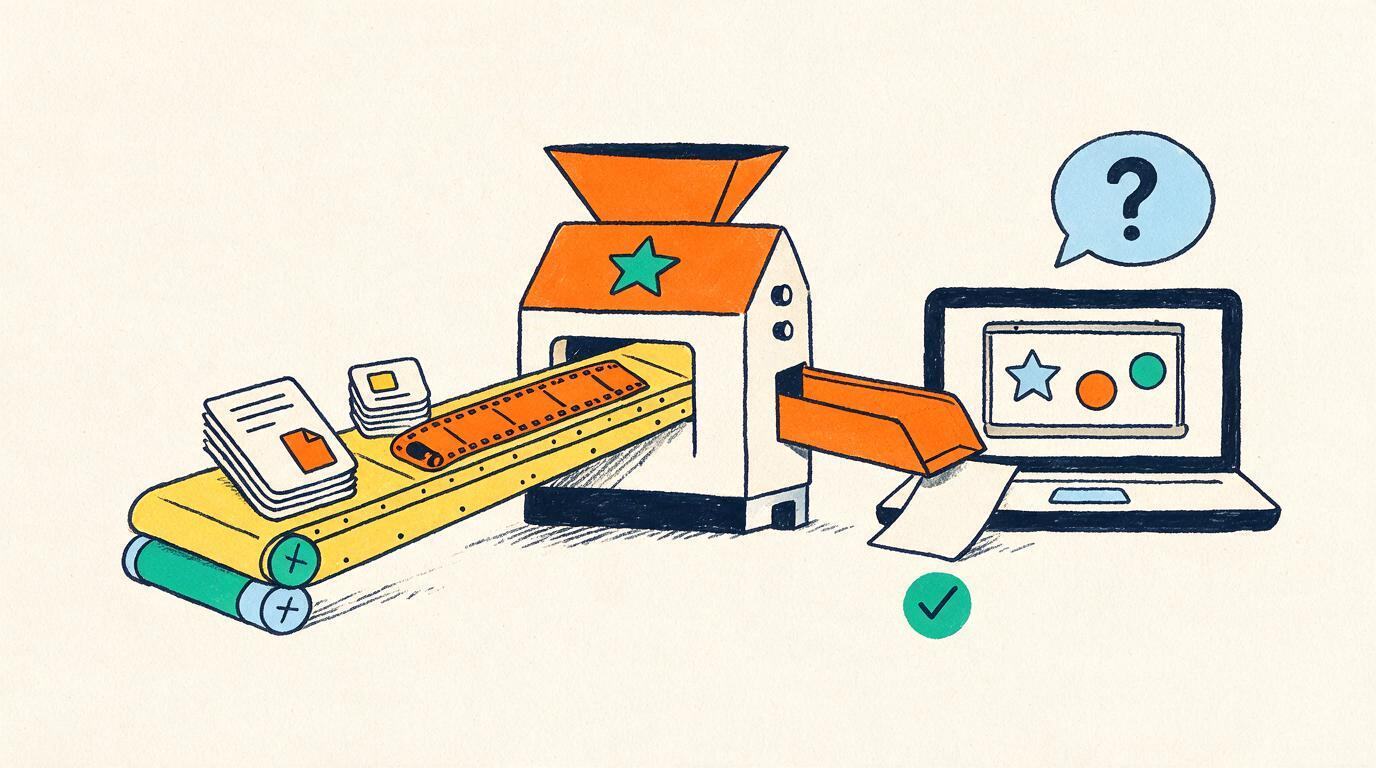
Most people searching for a way to convert a PDF to an interactive lesson have a pile of good material that learners skim and forget: handouts, slide decks, recorded lectures, question banks. The word “interactive” gets stretched to cover a “next” button, a flip card or an animation. Those are motion, not interaction.
A useful definition comes from Chi and Wylie’s ICAP framework, published in Educational Psychologist in 2014. It sorts learning activities by what the learner visibly does: passive (receiving), active (manipulating, such as highlighting, pausing or picking from a menu), constructive (generating something beyond the material, such as a prediction or a self-explanation) and interactive (a dialogue with frequent turns where both sides contribute; the partner can be a computer agent that responds to the content). Their hypothesis, supported by the studies they review, is that learning increases in that order. Clicking through slides is passive. Even choosing an answer from a menu is, in their terms, only active.
So for this guide, an interactive lesson has four ingredients:
- A question after each idea, not a quiz at the end of the chapter.
- Feedback on the actual answer, including why a specific wrong answer is wrong.
- Remediation: a hint first, then a second explanation, then a return to the idea later if it stayed weak.
- Room to ask: the learner can raise their own question about what is in front of them.
The evidence behind these ingredients is solid. Freeman and colleagues’ 2014 meta-analysis in PNAS pooled 225 studies of undergraduate STEM courses. Average exam scores were about 6% higher under active learning, and students in traditional lectures were 1.5 times more likely to fail. Separately, Roediger and Karpicke (2006, Psychological Science) showed the testing effect: students who practiced recalling a passage remembered substantially more two days and a week later than students who reread it, even though rereading made them more confident. A question after each idea is retrieval practice built into the lesson. For more ways to check, see Checking for understanding: 12 techniques that work online.
How to convert a PDF into an interactive lesson, step by step
The same process works whether you use an authoring tool, an AI generator or a live AI tutor. Only the tool at step 5 changes.
- 1
Audit what you have
List every asset for the course: PDFs, scans, decks, recordings, web pages, question banks. Note which is the most accurate and most current version of each topic. Conflicting sources produce conflicting lessons. - 2
Pick one unit
Choose a unit where learners struggle and the material is stable. One chapter of 5 to 15 pages or slides is enough to learn the process. - 3
Clean the sources
Rescan faint or crooked pages. Correct the video transcript’s technical terms. Add speaker notes to slides that are only pictures or keywords. Remove pages you would not teach from. - 4
Write the objectives
Three to five lines of “by the end, the learner can…”, each one checkable. If you cannot write a question for an objective, it is not an objective yet. - 5
Generate the draft
Let the tool split the unit into topics and concepts and draft explanations, diagrams, checks and hints. Keep the source attached so you can trace every claim. - 6
Review boards, diagrams and checks
Read it as the learner would. Check every number, formula, label and answer key. Replace generic hints with the mistakes your learners really make. - 7
Pilot with real learners
Give it to 15 to 20 learners from the actual audience, not colleagues. Watch where they fail checks, where they ask questions and where they stop. - 8
Iterate, then scale
Fix the source or the check behind each problem and regenerate that part. Once the unit holds up, convert the next ones using what you learned.
How each format converts
Different sources fail in different ways. Most of the preparation work is knowing which.
| Format | What the AI reads | Prepare before converting | Watch for |
|---|---|---|---|
| PDF with real text | Text, headings, tables | Remove cover pages, blank pages and answer keys you do not want surfaced | Multi-column layouts and tables split across pages |
| Scanned PDF | Text recovered by OCR | Scan at 300 dpi or more, pages straight, dark borders cropped | Misread digits, symbols and subscripts; handwriting |
| Slide deck | Titles, bullets, speaker notes | Add notes where a slide is only a picture or three words | Bullets are fragments; the explanation was in your voice |
| Recorded video | The transcript | Correct names and technical terms in the transcript | “As you can see here”: the visual is not in the transcript |
| HTML document | Structured text, tables, embedded images | Strip navigation, banners and unrelated links | Images without alt text or captions |
| Question bank | Ready-made checks, keys and distractors | Tag each question to a concept; fix wrong keys | Distractors are misconceptions; use them as hints |
On scans, the documentation for the open-source Tesseract OCR engine is blunt. It says the engine “works best on images which have a DPI of at least 300 dpi,” that skewed pages significantly reduce the quality of line segmentation, and that dark scanning borders can be misread as characters. Whatever OCR your tool uses, a crooked photocopy of a photocopy will produce errors, and the ones that do the most damage are in numbers, units and symbols.
What AI does well, and what a human must review
Generation is the fast part. Review is where lesson quality is decided. Split the work like this:
| Part of the lesson | AI drafts well | A human must check |
|---|---|---|
| Structure | Splitting a chapter into topics and single ideas | The order matches how you teach; nothing essential skipped |
| Explanations | Clear, plain wording at a stated level | Your terminology, notation and method, not a textbook’s |
| Numbers and formulas | Typesetting and restating them | Every value, sign, unit and worked step, especially after OCR |
| Diagrams and images | Simple structural diagrams; text descriptions of images | Labels, arrows and scale; anything the narration points to |
| Checks and answer keys | Many candidate questions in several formats | Exactly one defensible answer; a rubric for short answers |
| Hints and misconceptions | The common textbook errors | The mistakes your learners actually make |
| Domain edge cases | The general rule | Exceptions, version or jurisdiction differences, recent changes |
The research on AI tutors points the same way. In the 2025 Harvard physics trial by Kestin and colleagues in Scientific Reports, the tutor’s accuracy came from step-by-step solutions the instructors wrote into its prompts, rather than from the model working problems out alone. Even dedicated generators state their limits: H5P’s help center says its Smart Import feature currently ignores mathematical equations, chemical reactions, physics numericals and diagrams. For how to keep a live tutor faithful to reviewed material, read Will an AI tutor make things up?
What a conversion pipeline looks like
Whatever tool you use, a sound pipeline turns sources into a reviewable plan before any learner sees a lesson. Tutezy is one example of this design, so the diagram uses its terms.
In Tutezy’s version, each slide or document is compiled once into that plan. Boards are built from a fixed set of operations (heading, bullet, formula, table, SVG diagram, image, highlight), and every image or diagram carries a text description so the teacher can refer to it. Checks can be multiple choice, short answer or predict-then-reveal, each with an expected answer, a rubric and hints for common misconceptions. You see the credit cost per slide before converting, preview any board exactly as a learner will see it, and recompile a slide after fixing its source. Concept ids stay stable across recompiles, so learner progress is not lost. The full mechanism is on how it works.
How to write checks that check something
Checks are where a converted lesson earns the word “interactive” or loses it. “Did that make sense?” and “Which of these is Newton’s second law?” test politeness and recognition, not understanding. A good check makes the learner use the idea once.
- One idea per check. If a wrong answer could come from two different confusions, you cannot target the hint.
- Ask for a prediction or a next step, not a definition. Applying the idea is the test, and producing an answer beats picking one.
- Write the expected answer and a rubric for any open question, or no reviewer, human or AI, can grade it consistently.
- Mine your question bank for distractors. Each popular wrong option is a misconception that deserves its own hint.
- Cap the remediation. A hint, then the answer with an explanation, then move on and come back later. Nobody should be stuck in a loop.
Tools for turning slides into interactive lessons
There are two broad kinds of tool, and they produce different things.
Authoring tools produce interactive content that you publish and host. One open example is H5P, which describes itself as “a completely free and open technology, licensed with the MIT license,” with content types such as Course Presentation (multiple choice, fill-in-the-blank and other interactions added to slides) and Interactive Video (the same kinds of questions and pop-up text added to a video). On H5P.com, the paid hosted service, a feature called Smart Import uses AI to generate H5P content from documents, audio and video. As of September 2026, H5P’s help center says it works best on declarative, factual material, accepts PDF, DOCX and ODT documents but not PowerPoint, and fully supports English and Spanish. The result is authored content: every learner sees the same questions, with feedback written in advance.
Live AI tutors produce a lesson that is taught, not published. The plan is prepared from your material, but the conversation happens live, so the tutor can react to a specific wrong answer, answer a doubt and revisit a weak idea for that one learner. The trade-off is a per-minute running cost instead of a one-time build, and a runtime you rely on rather than a file you own. If you are deciding how that fits into a course you already sell, see How to add an AI tutor to your online course.
You can use both: authored interactions for short practice sets, a live tutor for the chapters where learners get stuck. Either way, the preparation and review steps above are the same, and they are where most of the quality comes from.
Where Tutezy fits
What we built for this
Tutezy is a live AI tutor built on this pipeline. It compiles your PDFs (scanned ones are OCR-ed), recorded videos (transcribed), slide decks, HTML documents and question banks into a teaching plan of topics, concepts, board steps, narration, checks, hints and misconceptions. You preview every board before a learner sees it and recompile anything you tighten. Each learner is then taught one to one on a whiteboard, by voice or text, with a check after every concept and weak ideas revisited. Compiling a typical 40-slide course costs under $2.50 in credits; live lessons are $0.03 per learner-minute. See Tutezy for course creators and the pricing page.
Where it does not fit: it is a live runtime, not an authoring tool, so nothing is pre-rendered into a file you can host elsewhere; lessons run inside the Vacademy learner app on web, Android and iOS. It teaches in English and Hindi only. A bad scan still needs rescanning, and material that exists only in your head has to be written or recorded first.
Sources
- Chi, M. T. H., & Wylie, R. (2014). The ICAP framework: Linking cognitive engagement to active learning outcomes. Educational Psychologist, 49(4), 219–243. doi.org/10.1080/00461520.2014.965823
- Freeman, S., Eddy, S. L., McDonough, M., Smith, M. K., Okoroafor, N., Jordt, H., & Wenderoth, M. P. (2014). Active learning increases student performance in science, engineering, and mathematics. PNAS, 111(23), 8410–8415. doi.org/10.1073/pnas.1319030111
- Roediger, H. L., & Karpicke, J. D. (2006). Test-enhanced learning: Taking memory tests improves long-term retention. Psychological Science, 17(3), 249–255. doi.org/10.1111/j.1467-9280.2006.01693.x
- Kestin, G., Miller, K., Klales, A., Milbourne, T., & Ponti, G. (2025). AI tutoring outperforms in-class active learning: an RCT introducing a novel research-based design in an authentic educational setting. Scientific Reports, 15, 17458. doi.org/10.1038/s41598-025-97652-6
- Tesseract OCR. Improving the quality of the output (documentation). tesseract-ocr.github.io/tessdoc/ImproveQuality.html
- H5P. Smart Import introduction (help center article, updated September 2, 2026). help.h5p.com/hc/en-us/articles/8229514747805-Smart-Import-Introduction-and-Video-Tutorial
- H5P. Create and share rich HTML5 content and applications. h5p.org
Frequently asked questions
How do I convert a PDF into an interactive lesson?+
Split the PDF into single ideas, write one question for each idea, add feedback and a hint for the most likely wrong answers, and give the learner a way to ask about what they see. AI tools can now draft this structure from the PDF itself. Clean the source first, set learning objectives, and review every number, diagram and answer key before learners see the result.
Can AI turn a PowerPoint into an interactive lesson?+
Yes, but slides are harder than they look, because bullets are fragments and the real explanation was spoken by the presenter. Add speaker notes to image-only or keyword-only slides before converting. Check which formats a tool accepts: H5P’s Smart Import, for example, lists PDF, DOCX and ODT documents but says PowerPoint files are not supported.
Can I make an interactive lesson from a recorded video?+
Yes. The video is transcribed and the transcript becomes the source for explanations and questions. Check the transcript for technical terms and names, and note every place where you said something like “as you can see here”, because the visual is not in the transcript and has to be described or redrawn.
Does scanned PDF quality matter for AI lesson generation?+
Yes. Scanned pages are read with optical character recognition, and the documentation for the open-source Tesseract OCR engine says it works best at 300 dpi or more and that skewed pages and dark scanning borders reduce accuracy. Rescan faint or crooked pages, and check every number and symbol in the output.
What makes a lesson interactive rather than just clickable?+
The learner has to produce something: answer a question, predict a result or explain a step, and then get feedback on it. Clicking next, flipping cards or watching an animation is not the same. A good interactive lesson asks after each idea, responds to the specific wrong answer, revisits what the learner missed and lets them ask their own question.
How long does it take to turn a course into interactive lessons with AI?+
Generation itself is fast; the time goes into preparing sources and reviewing the output. Plan to convert one unit first, review every check and diagram, pilot it with real learners, and fix what the pilot shows before converting the rest. With Tutezy, compiling runs at minutes per slide in the background, and a typical chapter is ready well within an hour.
See it teach
Take a 10-minute lesson, then book a demo on your own content.
No sign-up for the lesson. The call is 20 minutes and we convert one of your chapters live. We're in India. Calls run 9:30 am–3:30 pm ET (7 pm–1 am IST), Monday to Friday.